Links in Bucket: the chrome-extension that I wrote without writing any code

Newsletters have been a great source for my growth as an engineer. I’m subscribed in quite a few and I’ve even contributed to some. Unfortunately, I no longer have the time to sit down and read all the articles that piqued my interest. I’m always on the move for work or family matters or I will be doing chores at the house.

Making a podcast from the articles

Podcasts are the other source of learning things and keeping up with the latest trends. The fact that I can listen to them on idle time (commuting, chores) is why I keep on using them constantly.

A great feature that NotebookLM has is the creation of an audio file based on the resources you’ve provided. The fun part is that the audio is not a dry read through the gist of the resources. It is a rich dialogue between two characters much like a conversation in a regular podcast.

So one day I thought of combining the two and create a podcast from all the articles that I want to read but don’t have the time to. The result was good. Especially if I didn’t mix and match articles from different newsletters. What I didn’t like was the process. Each article had to be opened in its own tab since most newsletters don’t provide the direct link, then I had to copy the link, go to the notebook’s tab, paste it and repeat the steps for the next one.

What I wanted was to be able to right click on the newsletter’s link, save it to a list and when I’m done collecting links go to notebooklm and create a notebook from them.

Links in Bucket

I knew that this can be done through a chrome extension but I’ve never written one. Actually I’ve never written anything web related. In the past that would be the end of story. Nowadays, a couple of prompts and half an hour are all you need!

So, this is the initial prompt. It contains a quick summary of my need, a description of how I have imagine it work and the way it will used. Since I haven’t worked in this space before, I also asked the LLM to justify its decisions so that I will also learn a thing or two!

I am subscribed in various programming-related newsletter but I don’t have the time to read them all anymore. What I do have is a lot of commute time and a preferance into listening to podcasts.

So the use case is:
i want to manually open a newsletter, pick the articles that i want to read and for them save their link in a “bucket”. When ready I want to be able to dump that “bucket” of links in notebookllm and ask it to create a podcast for me.

In more details:
we need to create an extension for chrome-based browsers that provides two things:
(1) when the user does a right click on a link the extension provides a “save to bucket” option that saves the link in a local storage. some times the link might not lead directly to the article because of attribution systems etc. the extension must save the final link that opens the article.
(2) when the user does a right click on a text field it provides a “dump from bucket” option that fills the text field with the saved links, separated by a newline, and empties the bucket.

The extension is not intended to be upload to any store, i will be installing it from the file system.

Critical note: i am a seassoned software engineer but i’ve never build anything with javascript/typescript/bun. If possible use these technologies and provide detailed explanations of all the decisions in order to get familiarized with them.

After using the first outcome I quickly realized that I need to be able to remove links before dumping them:

we need to provide to the user the ability to remove links from her bucket. perhaps a list with all links and a small x or trash bin next to the link. if the number of the links is greater or equal to two then we need to provide a way to remove all them

If you want to take a look at the result you can find it here: https://github.com/le0nidas/links-in-bucket.
I’ve also included the plans that were created by the two prompts since they include the explanations that I’ve mentioned.

Leveraging @RequireOptIn to create composables that can be used only in previews

Anyone working with Kotlin, especially in the android world, has dealt with RequireOptIn. Actually they had to deal with the consequence of its application which is to explicitly opt-in into using a piece of code that is annotated with it.

@RequiresOptIn

In a nutshell, if you want the consumer of your code to be fully aware that they are about to use it, you annotate the code with RequiresOptIn and that forces the consumer to annotate the call site with OptIn.
Its like informing someone about the dangers of something and then having them sign that you have no responsibilities for anything that might happen to them.

@PreviewOnly

The problem

We have a composable, named renderList, that is part of module A and is being exposed to the rest of the project through another composable, named renderScreen:

// <module A>
// file RenderScreen.kt
@Composable
fun renderScreen(screen: Screen) {
renderTitle(screen.title)
renderList(screen.list)
}
// file RenderTitle.kt
@Composable
internal fun renderTitle(title: Title) {
// rendering the title
}
// file RenderList
@Composable
internal fun renderList(list: List) {
// rendering the list
}
// </module>

renderList knows how to render List instances and we want to preview this rendering but in another module.
Using renderScreen is not possible because it also contains components that cannot be initialized when being in design time.

The solution

We are going to add one more composable in module A which will expose only the renderList:

// <module A>
// file RenderScreen.kt
@PreviewOnly
@Composable
fun renderScreenPreviewer(list: List) {
renderList(screen.list)
}
// </module>

and to prevent its usage in production code we are going to add some friction with the @PreviewOnly annotation which underneath leverages @RequireOptIn:

@RequiresOptIn(
message = "This composable is intended for preview usage only",
level = RequiresOptIn.Level.ERROR
)
@Retention(AnnotationRetention.BINARY)
@Target(AnnotationTarget.FUNCTION)
annotation class PreviewOnly
view raw preview-only.kt hosted with ❤ by GitHub

This way every call site of renderScreenPreviewer will end up in a compilation error unless the user explicitly opts in into its usage:

Pinky and the Brain: my agent/subagent duo

OpenCode‘s agents configuration and Beads. A match made in heaven.

My flow until now

Working on a task starts with the Plan agent. I provide an initial prompt of what I want to achieve and the agent responds with a plan. If the plan needs adjustments I ask the agent to update it. When I’m satisfied with the final outcome I move to the execution of the plan. This will happen in one of two ways:

  1. If the context window is still small I simply change agents1 (move to Build) and ask it to proceed with the execution.
  2. If the context window is already big I ask the agent to save the plan in a markdown file, start a new session and ask the Build agent to read the file and execute the plan.

This flow works but there are a few drawbacks that bother me:

  • There is no human in the loop. I end up reviewing all changes at the end of the execution.
  • Even if I start a new session, depending on the size of the plan, the context window might get big causing the agent to misbehave. Especially in changes that must be repeated.
  • I usually use Opus for planning and Haiku for execution. There are times though that I forget to make the change ending up using Opus for everything. Opus is good but is also expensive!
  • You can’t easily pause the flow and continue from where you stopped.

My new flow

My new flow is based on one agent, one subagent and a database. In particular:

  1. Like before I start with an agent that will help me build a detailed plan that consists from a number of tasks.
  2. When I’m happy with the plan I ask the agent to use Beads and save each task under an epic.
  3. Then I ask the agent to start the execution loop.

Execution loop

  1. The agent uses Beads to figure out which task must be executed. It changes its status to in_progress and asks the subagent to execute it.
  2. The subagent reads the task, makes the necessary changes and informs the agent that it finished.
  3. The agent asks me to review the changes and approve them or not.
  4. If I approve the changes, the agent commits them, close the task and move to the next one.
  5. If I request changes, the agent asks the subagent to make them. At this point we move to step 2 again. We remain at this inner loop until I give my approval.

Pinky and the Brain2

If you didn’t make the connection yet, Brain is the name I gave to the agent (type primary) and Pinky is the subagent.

I did not created them on my own. I asked OpenCode to help me by describing the flow I wanted. OpenCode read its own docs, asked me a couple of clarifying questions and came up with these:
Brain: https://gist.github.com/le0nidas/aae1c9f1b35110a00b7157b6c2437444
Pinky: https://gist.github.com/le0nidas/b8a3a89131a639e39e42f7aaf794cf33

Benefits

  • I am finally in the loop. I review fewer changes at a time and sooner!
  • Using subagents for each task keeps both the agent’s and the subagent’s context window smaller and cleaner ending up in fewer, to none, misbehaviors.
  • Brain is tied with Opus and Pinky with Haiku. No need to remember to change anything!
  • The best of all, with Beads I can pause and resume whenever I want. The agent knows where to start from!

PS: if you are part of team and don’t want to pollute the codebase with various configurations, you can (a) init beads in stealth mode and (b) exclude .opencode folder from git

  1. according to the docs, all primary agents share the main conversation hence share the same context window ↩︎
  2. https://www.imdb.com/title/tt0112123/ ↩︎

3 weeks of agentic coding

use gh and tell me how many PRs I have authored the last 3 weeks. from these PRs how many are merged? what was the total of added and removed lines?

Your PR Statistics (Last 3 Weeks)
 - Total PRs authored: 31
 - Merged PRs: 27 (87% merge rate)
 - Total lines added: 4,095
 - Total lines removed: 2,758
 - Total lines changed: 6,853
You've been quite productive! Most of your PRs from the last 3 weeks are merged, with a solid mix of refactoring and feature work.

Up until now the main way of using LLMs was through chat. Every time I wanted to do a deep dive on a technical issue I was starting a conversation through which I was getting a better understanding both on the code and the way it should be used.

I had played with the agent tab of copilot in android studio but never given it too much time. That was the reason I believed that it is not that good!

So, I decided to give it a real shot and use it foul time, on production code, in a project that is important. The goal was to write as little code as possible.

The workflow I ended up having

  1. Understand the task at hand and create a mental model of the solution.
  2. Figure out the steps I need to make in order to implement the solution. If the steps are too many I break them into groups.
  3. Start writing these [group of] steps in a prompt where I ask the agent to provide me a plan with the intended changes.
  4. Review the plan, ask the agent to make adjustments (repeat this step as many times as needed).
  5. Ask the agent to save the plan in a markdown file.
  6. Ask the agent to execute the plan.
  7. Review the changes.
  8. If something trivial needs to be changed I do it myself, if the change cascades through many files I tell the agent to do it.
  9. In the second case I also request an update to the plan.
  10. Final review, commit and push.

The prompts must not be too detailed but also not too general. For example:

Take a look at <file #1> and <file #2> and give me a plan with all needed changes in order to:
1. Start <component #1> as disabled
2. Enable it every time the user selects an address (<component #2>) or
3. Enable it every time the user is typing a new zipcode (<component #3>)

Mistakes

It goes without saying that to end up in the above workflow I did many mistakes. Here are the big ones.

Provide the outcome

At first my prompts were a simple description of the outcome I wanted. I thought it will figure things out, make the necessary connections and write exactly what we need. Nope. The agent knows what you allow it to and when it can’t find something it simply creates random solutions.

Straight to the execution

My interaction with the agent was starting by asking it to do something. No plan at all. In simple cases this might be fine but when having a change that touches many components, a simple adjustment, after the agent’s work, might end up in updating a lot of code or in more adjustments.

Getting greedy, asking too much

After making some progress and saw how effective I was I got greedy. I started asking too much from the start and ended up with massive PRs that included changes often unrelated to each other.

Tips

Always have a plan first

  • For me having a plan gives me ease. I am more certain that things will be done as intended because they will be done they way I want to!
  • Through the process of making the plan there will be times that you will understand better the code at hand and figure out missing cases.
  • Especially for repetitive tasks the plan speeds things tremendously:
    I had to migrate a few screens from one pattern to another. I did the first migration using the agent (through a plan etc) and when finished I asked it to change the plan in such a way that will accept “parameters”. After that I just fed the updated plan with the next screen to the agent.
  • It is a memory that can be fed in any agent, in a clean context window, at any time.

Use the agent to figure things out

Some times in order to build the mental model for the solution you need to understand the code better. Use the agent to do that. See how it articulates things and then ask it to save its findings in a file. That file can be part of the plan:

see how component A works by reading file <name>

Always review the code

Perhaps the most important tip of all. Don’t add code to the project that you don’t know what it does. Always review what the agent did. Make sure that it follows the project’s conventions and standards. The fact that it was written by an agent does not mean that it is not your code. You are responsible for it. It is your solution, you just used a different medium to implement it.

Explore more, it is fast now

The benefit of having a tool that implements your thoughts way faster than you is that you can explore multiple solutions! Use git to make different branches/checkpoints and try every approach you thought of.

Keep things small

You can use an agent to implement an entire task but if you break it and do groups of changes then your reviews will be easier and quicker which means that your understanding of the changes will be better.

Bonus

I keep a repo with the Gilded Rose kata. Every now and then I create a new branch and practice on the kata.

This time the practice required to use only an agent. You can see the branch here and the prompts I used here (i asked the agent to save them to a file).

Working with checkpoints

There are times that my workflow involves a lot of small and consecutive commits. Commits that their message does not really matter since I will squash them into one that describes my work.

An example is when TDDing a certain functionality. In that case I usually write the test, make it pass and finally make a commit.

Why am I doing that? I see it like small checkpoints. I conclude a part of the functionality so I save it. This helps in restoring my code back to last point that I was happy with its state.

One commit

When I first started working this way I was making a distinct checkpoint for each part. Soon enough I realized that these commits didn’t provide any value. I was making them quick for just saving the code and their message was something like save or checkpoint or t.

So instead of doing this and having to squash lots of commits I started using amend. One commit for the first checkpoint and amend for the rest of them. This way, when I’m finished, I rename the HEAD of the branch to something descriptive and move on.

Lots of steps for one commit

I write my code using an IDE (Android Studio or Intellij IDEA) but when it comes to git I move to a terminal.

This means that for committing I have to (1) move to the terminal, (2) make the proper commit/amend and (3) move back to the IDE. Three steps for one save!

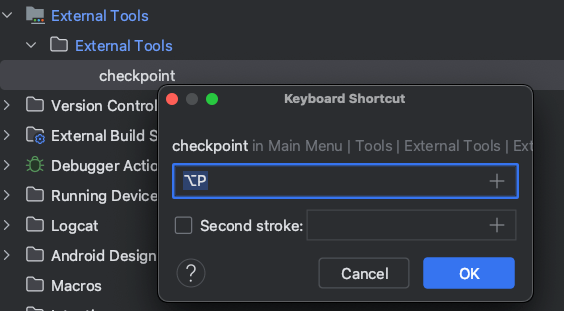
Alt + P

So I decided to fix it.

First the bash script that makes the commit:

#!/bin/bash
CHECKPOINT="checkpoint"
git add .
if [[ "$(git log –format=%B -n 1 HEAD | cat)" == "$CHECKPOINT" ]]; then
git commit –amend –no-edit
else
git commit -m"$CHECKPOINT"
fi
view raw checkpoint.sh hosted with ❤ by GitHub

A simple script that either makes a commit with the message checkpoint or amends the staged changes.

Second the import of this script to the IDE:

The Intellij platform provides a functionality called External Tools:
– Go to Settings -> Tools -> External Tools and click on the add button.
– Set the path of your script where it says Program .
– Disable the Open console for tool output if you don’t want to see the result of your script.

At this point you can either use checkpoint as an action (double shift, type checkpoint) or you can go a step further and create a keyboard shortcut:

Go to Settings -> Keymap -> External Tools -> Right click on the script -> Add Keyboard shortcut.

So now every time I want to create a checkpoint I simple press `Alt + P` and continue working without moving from one program to another!

Use Parceler to put your parcels on a diet

kotlin-parcelize is a great tool. Its simple to use and it helps in avoiding writing a lot of boilerplate code. There are times though that we need to take control of writing and reading to/from the parcel. One of these times is to cut down a few bytes from it (TransactionTooLargeException I am looking at you).

Meet me in the middle

@Parcelize takes full control and creates everything. Without the annotation, the developer has to do this on her own. Parceler lives in the middle of this spectrum. The plugin will create all necessary methods and classes but the actual write and read to/from the parcel will be the developer’s responsibility.

Without a Parceler the write/read looks like this:

public void writeToParcel(@NotNull Parcel parcel, int flags) {
Intrinsics.checkNotNullParameter(parcel, "parcel");
parcel.writeInt(this.id);
parcel.writeString(this.description);
parcel.writeString(this.priority.name());
parcel.writeParcelable(this.status, flags);
Attachment var10001 = this.attachment;
if (var10001 != null) {
parcel.writeInt(1);
var10001.writeToParcel(parcel, 0);
} else {
parcel.writeInt(0);
}
}
@NotNull
public final Task createFromParcel(@NotNull Parcel in) {
Intrinsics.checkNotNullParameter(in, "in");
return new Task(
in.readInt(),
in.readString(),
(Priority)Enum.valueOf(Priority.class, in.readString()),
(Status)in.readParcelable(Task.class.getClassLoader()),
in.readInt() != 0 ? (Attachment)Attachment.CREATOR.createFromParcel(in) : null
);
}

with a Parceler like this (where the Companion object is acting as a Parceler):

public void writeToParcel(@NotNull Parcel parcel, int flags) {
Intrinsics.checkNotNullParameter(parcel, "parcel");
Companion.write(this, parcel, flags);
}
@NotNull
public final Task createFromParcel(@NotNull Parcel in) {
Intrinsics.checkNotNullParameter(in, "in");
return Task.Companion.create(in);
}

Cutting down parcel’s size

The above-generated code is based on Task

@Parcelize
class Task(
val id: Int,
val description: Description,
val priority: Priority = Normal,
val status: Status = NotStarted,
val attachment: Attachment? = null
) : Parcelable
@Parcelize
class Attachment(val path: String) : Parcelable
@Parcelize
@JvmInline
value class Description(val value: String) : Parcelable
enum class Priority {
Low,
Normal,
High
}
sealed class Status : Parcelable {
@Parcelize
object NotStarted : Status()
@Parcelize
object InProgress : Status()
@Parcelize
class Completed(val completedAt: LocalDate) : Status()
}

which, creates a parcel of 248 bytes. The code does not do anything weird. All primitives, which include the value classes too, are well handled. So nothing to do here. This leaves parcelables and enums.

But first, let’s use a Parceler. This means that writing and reading to/from the parcel has to be implemented by us. For starters, we will do exactly what the generated code does except for the attachment property. For that, the generated code uses parcelable’s methods and CREATOR. In the Parceler we don’t have access to the CREATOR.

companion object : Parceler<Task> {
override fun create(parcel: Parcel): Task {
return Task(
parcel.readInt(),
Description(parcel.readString()!!),
Priority.valueOf(parcel.readString()!!),
parcel.readParcelable(Status::class.java.classLoader)!!,
parcel.readParcelable(Attachment::class.java.classLoader)
)
}
override fun Task.write(parcel: Parcel, flags: Int) {
with(parcel) {
writeInt(id)
writeString(description.value)
writeString(priority.name)
writeParcelable(status, flags)
writeParcelable(attachment, flags)
}
}
}

That leaves us with writeParcelable and readParcelable but now the parcel’s size is bigger, it is 328 bytes! Turns out that writeParcelable first writes the parcelable’s name and then the parcelable itself!

We need to use the CREATOR. After searching around I found parcelableCreator. A function that solved a well-known problem and will be added to Kotlin 1.6.20.

inline fun <reified T : Parcelable> Parcel.readParcelable(): T? {
val exists = readInt() == 1
if (!exists) return null
return parcelableCreator<T>().createFromParcel(this)
}
@Suppress("UNCHECKED_CAST")
inline fun <reified T : Parcelable> parcelableCreator(): Parcelable.Creator<T> =
T::class.java.getDeclaredField("CREATOR").get(null) as? Parcelable.Creator<T>
?: throw IllegalArgumentException("Could not access CREATOR field in class ${T::class.simpleName}")
fun <T : Parcelable> Parcel.writeParcelable(t: T?) {
if (t == null) {
writeInt(0)
} else {
writeInt(1)
t.writeToParcel(this, 0)
}
}

This allows us to revert the size increment back to 248 bytes

companion object : Parceler<Task> {
override fun create(parcel: Parcel): Task {
return Task(
//…
parcel.readParcelable()
)
}
override fun Task.write(parcel: Parcel, flags: Int) {
with(parcel) {
//…
writeParcelable(attachment)
}
}
}

Use enum’s ordinal than its name. The generated code writes enum’s name so that it can use Enum.valueOf when reading. We can write an int instead by using enum’s ordinal

companion object : Parceler<Task> {
override fun create(parcel: Parcel): Task {
return Task(
//…
parcel.readEnum()
)
}
override fun Task.write(parcel: Parcel, flags: Int) {
with(parcel) {
//…
writeEnum(priority)
}
}
}
inline fun <reified T : Enum<T>> Parcel.readEnum(): T {
return enumValues<T>()[readInt()]
}
inline fun <reified T : Enum<T>> Parcel.writeEnum(t: T) {
writeInt(t.ordinal)
}

and use Enum.values() when reading. This drops the parcel’s size to 232 bytes.

Skip a class’s parcelable implementation. This of course depends on each implementation.
For instance, Status is a sealed class that only one of its children has a construction parameter. We can leverage this by writing only that value

companion object : Parceler<Task> {
override fun create(parcel: Parcel): Task {
return Task(
//…
parcel.readStatus()
)
}
override fun Task.write(parcel: Parcel, flags: Int) {
with(parcel) {
//…
writeStatus(status)
}
}
}
fun Parcel.readStatus(): Status {
return readLong().let { value ->
when (value) {
0L -> NotStarted
1L -> InProgress
else -> Completed(LocalDate.ofEpochDay(value))
}
}
}
fun Parcel.writeStatus(status: Status) {
when (status) {
is Completed -> writeLong(status.completedAt.toEpochDay())
InProgress -> writeLong(1)
NotStarted -> writeLong(0)
}
}

this drops the parcel’s size to 136 bytes!

Conclusion

Fortunately, the generated code does a pretty good job and making any optimizations is not that common. But when needed Parceler and parcelableCreator are great tools.

PS: for measuring the parcel’s size I was using this method

fun Parcelable.sizeInBytes(): Int {
val parcel = Parcel.obtain()
try {
parcel.writeParcelable(this, 0)
return parcel.dataSize()
} finally {
parcel.recycle()
}
}

which was shamelessly stolen from Guardian’s TooLargeTool.

This is how I use Todoist

Disclaimer: this is not a paid post. I wrote it because I like the app and find it helpful. I also want to see, in a year, what has changed in the way I use it.

I always have a notebook next to my keyboard. I use it when trying to solve a bug or put in place a new feature. There was also a time that I used it to plan my day or keep notes for things that I wanted to ask or communicate. That didn’t last long since it wasn’t scaling!

That’s when I decided to move to a digital solution and search for the best to-do app. To be honest I can’t remember how I found out about Todoist. What I do remember though was that I did not check any other apps. Both its amazing human language parser and its shortcuts got me hooked immediately!

My usage

A little context. I use Todoist for over a year and only for work. That means that I don’t take advantage of their projects support. Every task gets added to the #Inbox which is my main driver. Throughout this year I’ve tried many setups and ways to incorporate my needs into the app. Here is how I use it:

Plan my day by setting the tasks that need completion

Every morning I see what needs to be done and create a task for it.

That does not mean that I open the company’s project management tool and copy whatever is assigned to me. I add only what cannot be tracked by the management tool. For instance, if a PR of mine got approved I add a task to merge my work in the main branch.

Also, if a meeting ends up with a couple of actionable items for me, I make sure to add them to Todoist. For example, talk to product about blah blah, comment on this thread, read that article, etc.

Another great source of action items is email. I go by them one by one and if something requires my attention I make a task for it.

Help me build habits

I try to cut down any distractions and one of them is looking at my emails every once in a while. What seems to work for me is to check them in the morning and create, if needed, tasks from them.

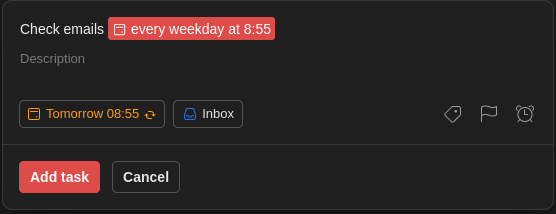
To force me in making it a habit I created a task that reminds me every weekday at 8:55 am to check my emails. This is 5 minutes earlier than when I start working so it gets registered, in my mind, as the first thing to do.

To show you the power of Todoist, for creating this task you need to write:

Check emails every weekday at 8:55

It will know what to do:

Reminders

Having a recurring task with a reminder is a good way to document things that do not belong anywhere else.

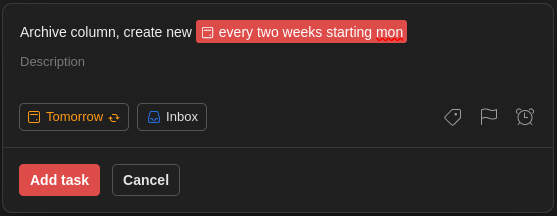
For example, every two weeks, on a Monday, I need to archive a column in our team’s board and create a new one.

Again, you can write it down

Archive column, create new every two weeks starting mon

and Todoist will understand it:

Write topics, questions, thoughts

Not everything is a task that needs completion. There will be topics and questions that must be communicated in a recurring meeting.

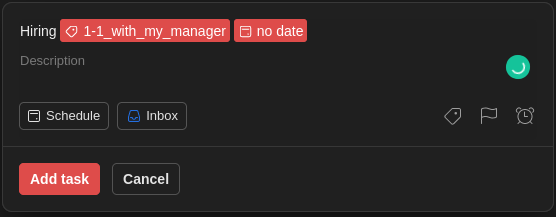
This is where I use labels for each meeting type and a task, with no date, for the topic/question.

This way, every time I am in one of these meetings, I open the label and have a list of what I wanted to discuss.

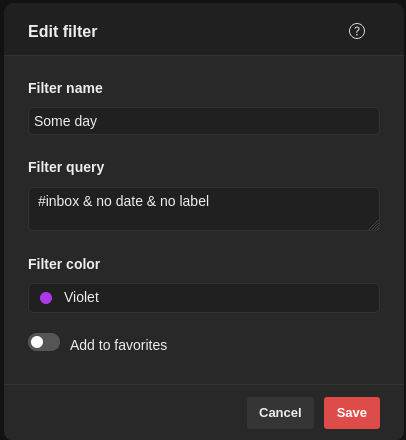
A task with no date and no label is also my way to write down my thoughts/ideas about the project. A possible refactoring, research for a new tool. Things that I need to get off my head but without setting a deadline.

Filters

I couldn’t close this post without mentioning filters. A feature that took me a while to use but can’t live without it anymore.

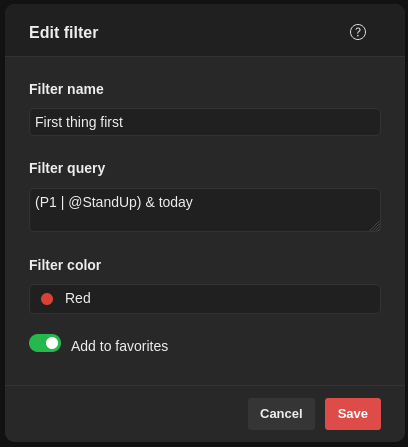
Better show you what I mean:

So, this is a filter I run every morning to see:

  • today’s high-priority (P1) tasks or
  • what needs discussion in the team’s stand-up

Another example is

that I use to resurface the thoughts and ideas that I mentioned before.

Know your tools: $SELECTION$ in Intellij IDEA

I have used and created Live Templates before but I didn’t know about the special keyword $SELECTION$. I found out after reading IntelliJ IDEA / Android Studio Tricks: Surround With by Ivan Morgillo.

In short, when a template gets invoked, $SELECTION$ gets replaced by whatever is selected at that moment.

I won’t go into details about creating a new template. You can read all about it at Ivan’s post. But when you learn how to create one then add the following:

This way you can do something like this:

PS: the $END$ keyword is another special one that pinpoints where the cursor will stop after adding values for an invoked template

Know your tools: scratch files in IntelliJ IDEA

I’ve used scratch files in IntelliJ IDEA and Android Studio but I think that can be found in all of Jetbrain’s products.

What are they?

Scratch files are files that don’t get tracked by the version control system, can be created at any given time and, most importantly, get bind to the IDE and not the project that is currently open.

How do I create them?

The simplest way is to hit ctrl+alt+shift+insert. If you can’t remember it press shift twice and start writing scratch, you will be presented with the action of creating a new one.

The next step is to choose what kind of file you want to create and this is where it gets interesting since you can choose from a plethora of file types. From plain text, to markdown, Kotlin, JSON, XML, ruby and many many more!

How do I use them?

By choosing the file’s type you choose how the IDE will behave when you are working on it, so if you create a scratch.json and paste some json in it you can format it accordingly. Or if you create a scratch.md you can start writing in markdown and have a preview of your work.

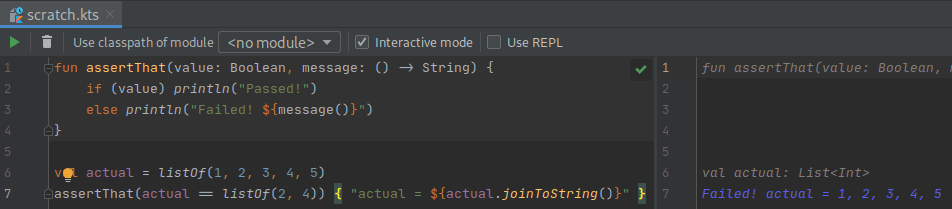
But the most powerful aspect of those files is when you create code related ones. If, for example, you create a scratch.kts file and start writing some Kotlin in it, you will see your code being run on the fly presenting to you its result:

TDDish

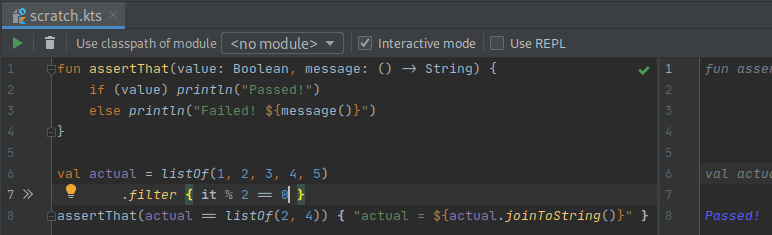
You can even work test first if you need to figure out a quick algorithm and have your test run in every change you make!

I usually start with an assertThat function and a failing test and go from there:

failing

Its a simple one but you get the point:

passing